
Newsletters in CountingWorks PRO help you stay connected with your clients and automate your marketing. You can choose between automated monthly newsletters or one-time custom emails.
This guide walks you through how to set up both.
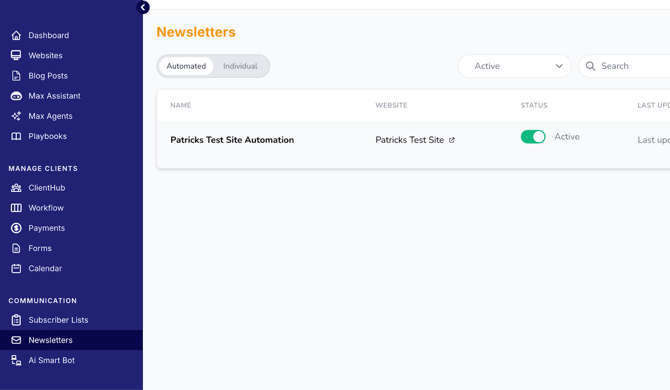
Accessing the Newsletter Tool
- Log in to your dashboard
- From the left-hand menu, click Communications
- Select Newsletters
Understanding Newsletter Types
You’ll see two options:
Automated Newsletters
- Created for you each month
- Sent automatically on the first business day of the month
- Designed to keep your firm top-of-mind with clients
💡 Tip: This is a “set it and forget it” marketing tool that runs in the background.
Individual Newsletters
- One-time, fully customizable emails
- Ideal for announcements, reminders, or updates
Setting Up an Automated Newsletter
- Click Create
- Select your website from the dropdown
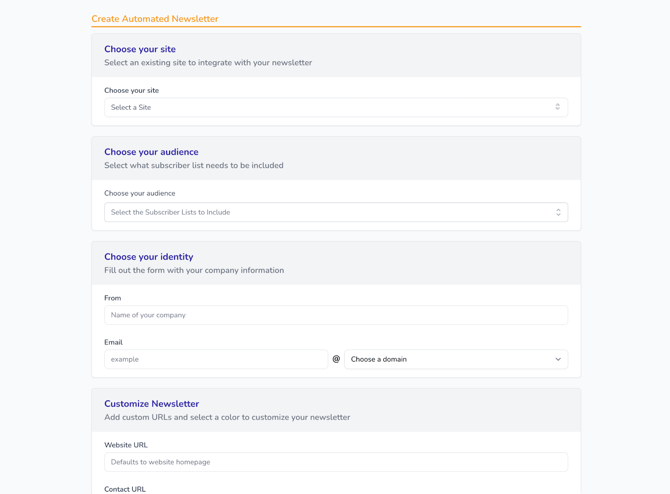
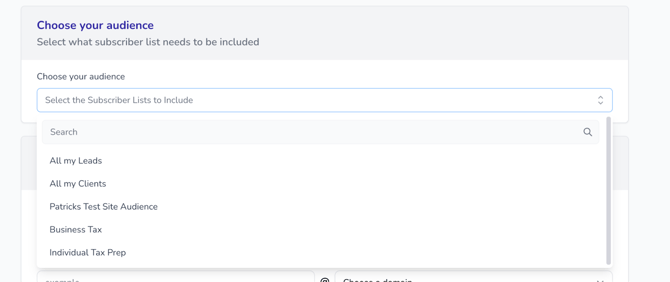
Step 1: Choose Your Audience
- Most commonly, select Clients
- You can also choose:
- Leads
- Custom subscriber lists
Step 2: Set Your Sending Email
- Enter a domain email address (e.g., yourname@yourfirm.com)
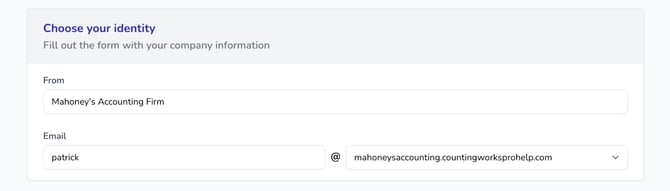
💡 Important: Using a domain email helps your newsletter avoid spam filters.
Step 3: Customize Content
You can tailor the newsletter by selecting:
- Categories (topics of articles)
- Tags (specific types of content)
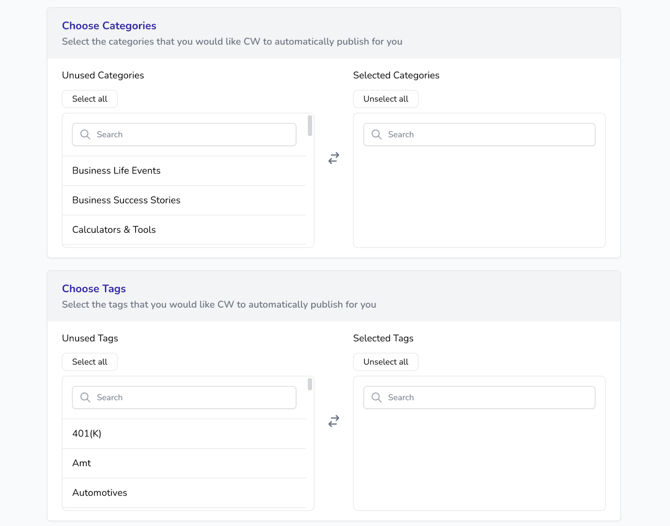
- Click any category or tag to remove it
- Only selected content will be included in your newsletter
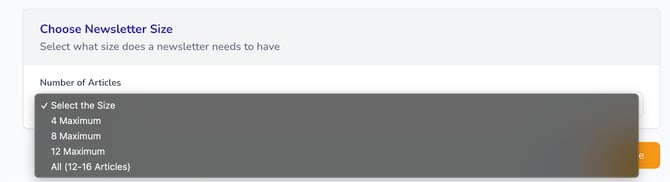
Step 4: Choose Number of Articles
Select how many articles to include:
- 4
- 8
- 12–16
Step 5: Save Your Newsletter
- Click Save to complete setup
📩 What Happens Next
- Your newsletter will send automatically each month
- You’ll receive a notification 5 days before it sends, allowing you to:
- Edit the introduction
- Remove any articles
Creating an Individual (One-Time) Newsletter
Use individual newsletters for targeted communication.
- Go to Newsletters
- Click Create under Individual Newsletters
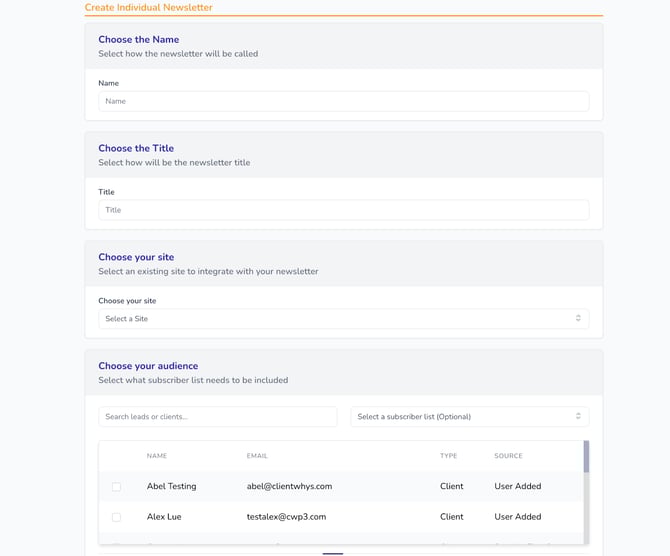
Step 1: Enter Basic Information
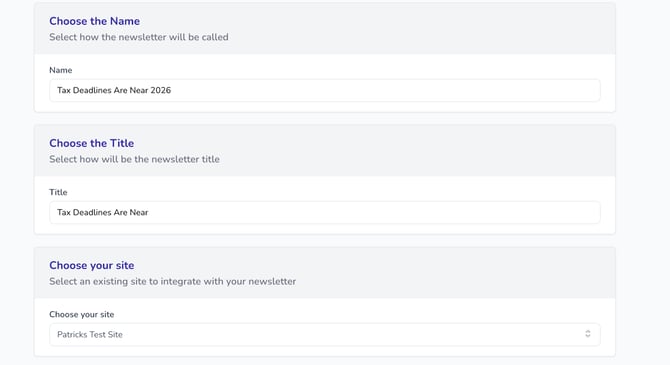
Fill in:
- Newsletter Name (internal use)
- Title (what recipients see)
- Website (select from dropdown)
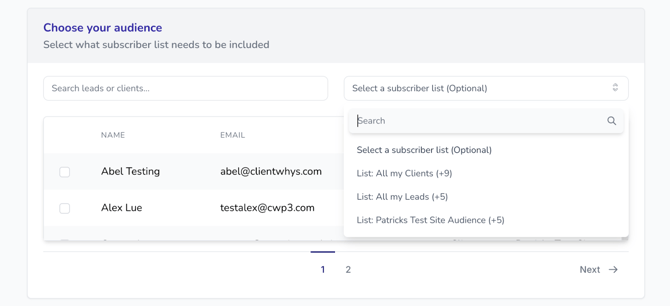
Step 2: Select Your Audience
Choose who will receive the newsletter:
- Clients
- Leads
- Custom lists
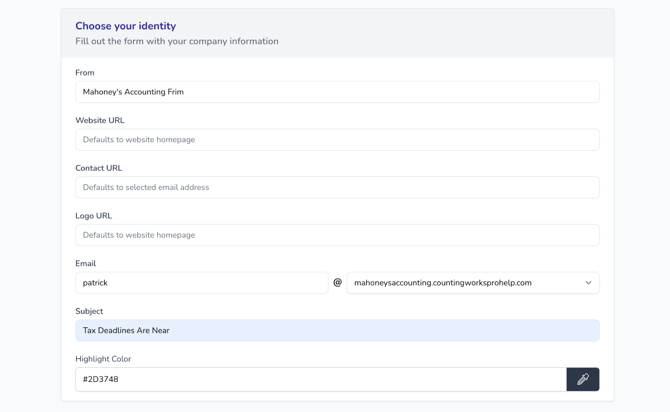
Step 3: Add Sender Details
- Enter your firm name
- Use a domain email address
- Add a subject line
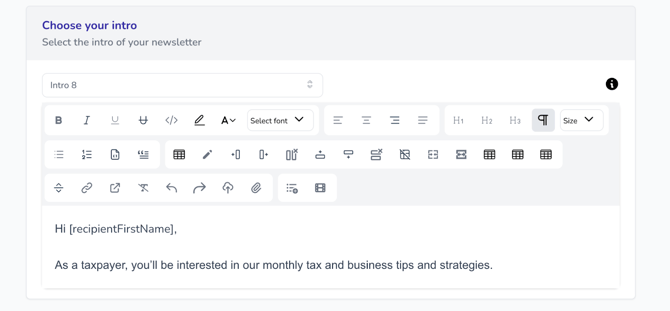
Step 4: Add Content
- Enter your custom message
- Optionally include pre-written articles from the platform
Step 5: Schedule Your Newsletter
- Select a date and time using the calendar
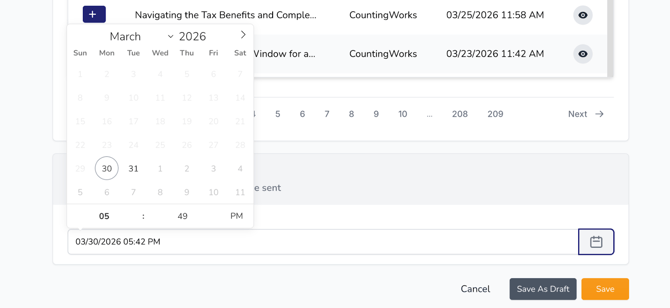
You can then:
- Preview the newsletter
- Save as Draft to edit later
- Schedule it to send
💡 Tip: Nothing is sent until your selected scheduled time.
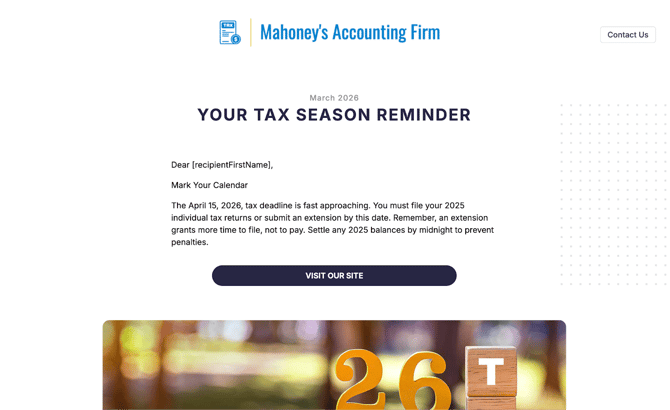
Previewing Your Newsletter
Use the preview option to review:
- Layout
- Content
- Overall appearance
Tracking Newsletter Performance
After sending, you can view:
- Opens
- Bounces
- Unsubscribes
- Spam reports
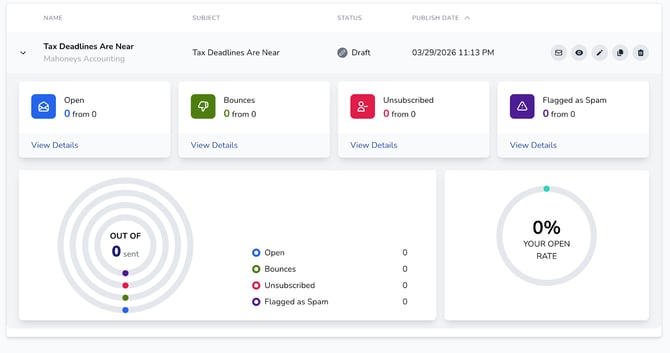
You can also:
- Edit
- Duplicate
- Delete newsletters
Summary
With newsletters in CountingWorks PRO, you can:
- Automate monthly client communication
- Send targeted, one-time updates
- Customize content to fit your firm
- Track engagement and performance
Best Practices
💡 Use automated newsletters for consistent monthly communication
💡 Use individual newsletters for timely updates or announcements
💡 Always use a domain email to improve deliverability
💡 Preview your newsletter before sending